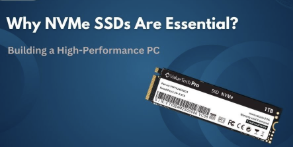
An nvme ssd is one of the best upgrades you can make to achieve faster PC performance and smoother multitasking. Unlike traditional hard drives or even SATA SSDs, NVMe drives utilize the PCIe interface to deliver exceptional read and write speeds, dramatically reducing boot times and application loading delays.
In this article, we’ll discuss why upgrading to an NVMe SSD can transform your computing experience, offering the speed, efficiency, and responsiveness needed for both everyday users and performance enthusiasts.
What Is an NVMe SSD?
An NVMe SSD (Non-Volatile Memory Express Solid State Drive) is a high-speed storage device that connects to your computer using the PCIe (Peripheral Component Interconnect Express) interface. This allows it to transfer data much faster than traditional hard drives or SATA SSDs.
Why the PCIe Interface Matters
PCIe provides multiple lanes for data transfer, unlike SATA’s single-lane design. This lets NVMe SSDs move more data at once, boosting performance for gaming, video editing, and handling large files.
NVMe SSDs are a major step up from traditional HDDs and SATA SSDs. They offer faster speeds, lower latency, better reliability, and compact designs. As software and workloads demand faster data access, NVMe SSDs are becoming the standard choice for high-performance computing.
Key Benefits of Upgrading to an NVMe SSD
Upgrading to an NVMe SSD brings major improvements over traditional HDDs and SATA SSDs. Here’s why it’s worth it:
- Fast Performance: NVMe SSDs deliver extremely fast performance by reducing boot times, speeding up application launches, and enabling rapid file transfers. This makes your system more responsive, efficient, and smooth, whether for everyday use, gaming, or professional workloads.
- Better Gaming and Creative Workflows: NVMe SSDs make gaming and creative work faster and smoother. Gamers enjoy faster game loading and smoother performance, while video editors, 3D designers, and anyone handling large files can work more efficiently.
- Energy Efficiency and Reliability: NVMe SSDs are more energy-efficient than SATA SSDs, using less power during operation. They are also highly durable because they have no moving parts, which reduces the risk of mechanical failure and improves overall reliability.
- Compact and Cable-Free Design: NVMe SSDs feature a small M.2 form factor that saves space in laptops and desktops. Their cable-free installation also improves airflow inside the PC, helping the system stay cooler and more organized.
Upgrading to an NVMe SSD makes your computer faster, more reliable, and more energy-efficient. It also helps keep your system compact and efficient, making it a great choice for gamers, creators, professionals, and everyday users.
Who Benefits Most from NVMe SSDs?
NVMe SSDs offer noticeable speed and responsiveness improvements that benefit all types of users from casual PC owners to professionals handling demanding workloads.
- Everyday Users: Enjoy faster boot times, quicker app launches, and smoother multitasking. Even simple tasks like browsing or file transfers feel more responsive.
- Gamers: Experience shorter load times, smoother gameplay, and reduced stuttering, especially in open-world or graphics-heavy games.
- Creators & Professionals: Benefit from faster file access, quicker video rendering, and more efficient data processing, which saves time when working with large media or complex projects.
NVMe SSDs make your system faster, smoother, and more responsive for all users.
Choosing the Right NVMe SSD for Your System
Choosing the right NVMe SSD depends on your system, performance needs, and budget. Here’s a simple guide to help:
- Price: NVMe SSDs are faster but cost more than SATA SSDs. Choose based on how much speed you need versus what you’re willing to spend.
- Compatibility: Check that your device supports the SSD’s form factor (like M.2) and interface (NVMe). Not all SSDs fit every system.
- Storage Capacity: Pick a size that fits your needs. Common options range from 250GB to multiple terabytes, with 1TB–2TB being ideal for most users.
- Speed: NVMe SSDs are best for gaming, video editing, and data-heavy workflows. For basic tasks, a SATA SSD may be sufficient.
- Device Requirements: Some devices, like the PS5, have specific speed and size requirements. Always verify before buying.
Recommended NVMe SSDs for 2025
- Adata Ultimate SU800
The Adata Ultimate SU800 is a budget-friendly SATA III SSD that utilizes 3D NAND technology, offering improved performance and endurance compared to traditional 2D NAND SSDs.
Key Features:
- Interface: SATA III (6Gb/s)
- Form Factor: 2.5-inch
- Performance: Up to 560 MB/s read and 520 MB/s write speeds
- Endurance: Up to 400 TBW for the 512GB model
- Warranty: 3 years
Ideal For: Users looking to upgrade from HDDs or older SSDs without breaking the bank.
Note: The SU800 offers solid performance for its price, but it may not be suitable for high-end gaming or intensive workloads due to its SATA interface limitations.
- Adata Legend 900 Pro (PCIe Gen 4.0 SSD)
The Adata Legend 900 Pro is a high-performance PCIe Gen 4.0 NVMe SSD designed for demanding applications such as gaming, content creation, and data-intensive tasks.
Key Features:
- Interface: PCIe Gen 4.0 x4
- Form Factor: M.2 2280
- Performance: Up to 7,400 MB/s read and 6,500 MB/s write speeds
- Compatibility: Backward compatible with PCIe 3.0 platforms
- Warranty: 5 years
Ideal For: Enthusiasts and professionals requiring top-tier performance for tasks like 4K/8K video editing, 3D rendering, and high-end gaming.
Note: Ensure your motherboard supports PCIe Gen 4.0 to get the full speed and performance of the SSD.
Tips for Choosing the Right SSD
- Match PCIe Generation: Use an SSD that matches your motherboard’s PCIe version to avoid slowing it down.
- Plan for the Future: Consider larger capacities if you expect to need more storage later.
- Balance Budget and Performance: PCIe Gen 4.0 SSDs often offer the best mix of speed and price.
How to Upgrade to an NVMe SSD
Upgrading to an NVMe SSD makes your computer faster and more responsive. Here’s a step-by-step guide to help you do it safely and correctly.
- Check Compatibility
Ensure your motherboard has an M.2 slot that supports PCIe NVMe SSDs, supports the same PCIe version as your SSD, and fits the M.2 2280 size.
- Back Up Your Data
Before installing the SSD, save your important files to an external drive or cloud storage to prevent data loss.
- Install the NVMe SSD
- Shut Down: Turn off your computer and unplug the power cable.
- Open the Case: Remove the side panel so you can see the motherboard.
- Find the M.2 Slot: Locate the M.2 slot, a small horizontal connector labeled “M.2.”
- Insert the SSD:
- Line up the SSD’s notch with the key in the slot.
- Insert it at a 30° angle, then gently press it down.
- Secure It: Screw it in place using the small screw that came with your motherboard or SSD.
- Reassemble: Put the side panel back on and reconnect the cables.
- Set Up the SSD in Windows
- Enter BIOS/UEFI to check that the SSD is detected.
- Boot into Windows → open Disk Management.
- Right-click the new drive → Initialize Disk → choose GPT.
- Right-click the unallocated space → New Simple Volume → assign a drive letter and format it.
- (Optional) Clone Your Old Drive
If you want to move Windows and your files to the new SSD:
- Use cloning software like Macrium Reflect or Acronis True Image.
- Connect both drives (use a USB-to-M.2 adapter if needed).
- Clone the old drive to the new SSD.
- Set the new SSD as the primary boot device in BIOS.